Adding Modifiers (EdgeServPOS Back Office)
Adding Modifiers
This guide will assume you have been provided your EdgeServPOS Back Office web address has been provided to you by your technician/rep. If it hasn't, please contact our support line @ 775-984-5702.
This guide will assume you have been provided your EdgeServPOS Back Office web address has been provided to you by your technician/rep. If it hasn't, please contact our support line @ 775-984-5702.
We'll start on the main menu. Click 'Menu'.
In this dropdown, click 'Modifier Item Editor.'
Welcome to the Modifier Item Editor! If youd like to edit a pre-existing modifier, you can search it up in the top right Search bar. If youd like to create a new Modifier, click Add New.
Here, you can input your names and price. Elaboration on some meanings are below.
Active - Signifies if an item is active in the database. If this is unchecked, your item wont show up in your menu.
Name - The name of the item.
Short Name - If this differs from what was typed into 'Name', the Short Name will show up on your button on the POS.
Kitchen Name - This is what will show up on KDS terminals or Kitchen Printers.
Readable Name For Guest - This is what will show up on Guest Printers.
Description - If you'd like to type a detailed description for your item, this is where you put it.
Flat Rate/Percent - If unchecked, your price will turn into a percentage of the items price.
Price - The Price of your Modifier.
Add Price - Only use if you have the Add/No/Extra utility bar. Sets a price for the Add button.
No Price - Only use if you have the Add/No/Extra utility bar. Sets a price for the No button.
Extra Price - Only use if you have the Add/No/Extra utility bar. Sets a price for the Extra button.
Sub Price - Only use if you have the Add/No/Extra utility bar. Sets a price for the Sub button.
Side Price - Only use if you have the Add/No/Extra utility bar. Sets a price for the Side button.
Color - Changes the color of the Modifier. You can copy paste colors from other Modifiers.
Ask Name - Asks the server for the name of the Modifier. Best used for Kitchen Comments or Open Items.
Ask Price - Asks the server for the price of the Modifier. Best used for Open Items or MP modifiers.
Below these options, EdgeServ prompts you to assign your Modifier to a Modifier Group. If your Group already exists, click on Add Group. From here, you can search up the name of your Group via the Search bar.
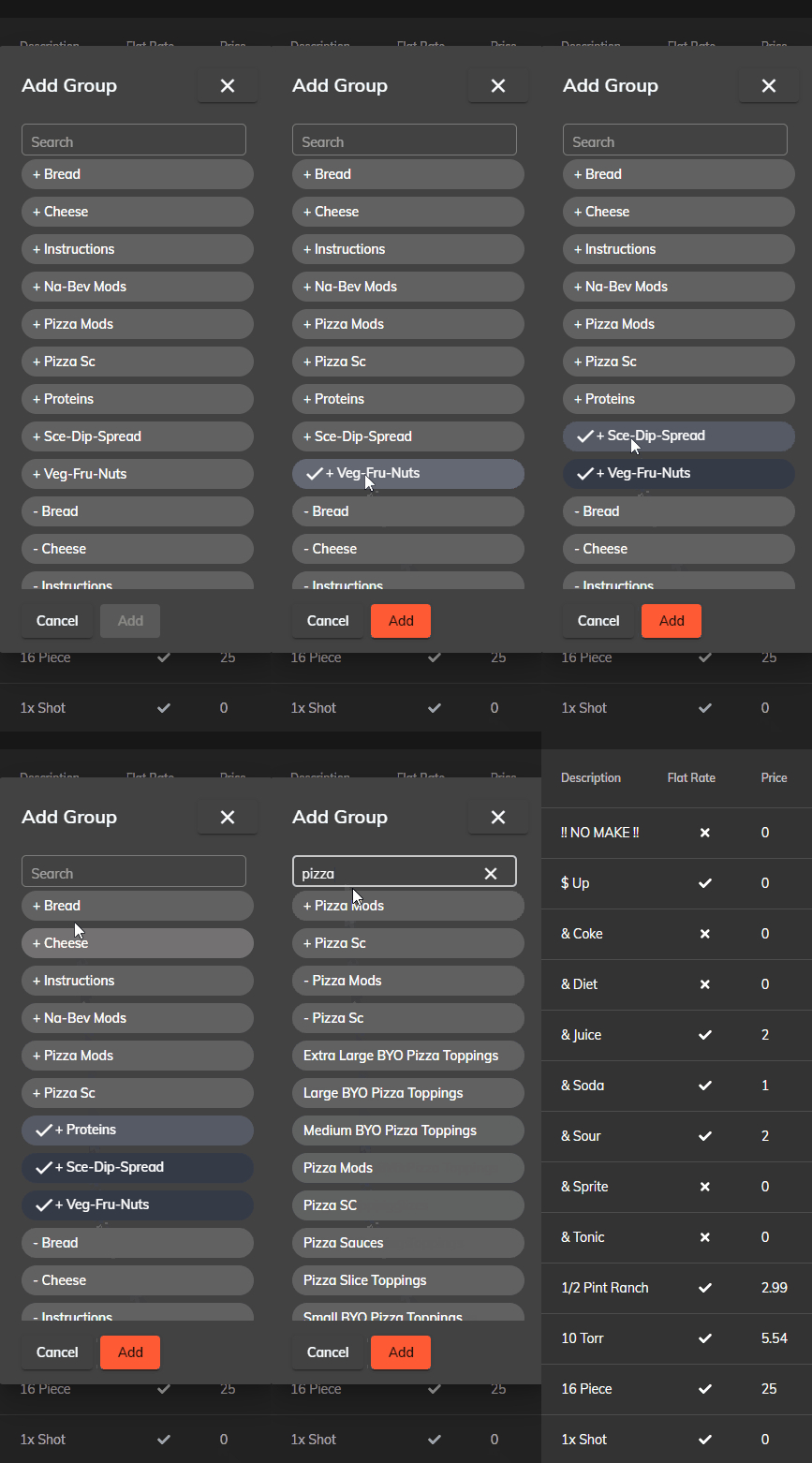
You can find the name of your Group by going onto your Point of Sale and checking the name of the Group via selecting the item its attached too.

If your Group doesn't exist and needs to be created, please reference this guide.
When youre done editing your Modifier, click the green Save button at the top right of the screen.
If you have any questions, please contact our support line @ 775-984-5702.
Price - The Price of your Modifier.
Add Price - Only use if you have the Add/No/Extra utility bar. Sets a price for the Add button.
No Price - Only use if you have the Add/No/Extra utility bar. Sets a price for the No button.
Extra Price - Only use if you have the Add/No/Extra utility bar. Sets a price for the Extra button.
Sub Price - Only use if you have the Add/No/Extra utility bar. Sets a price for the Sub button.
Side Price - Only use if you have the Add/No/Extra utility bar. Sets a price for the Side button.
Color - Changes the color of the Modifier. You can copy paste colors from other Modifiers.
Ask Name - Asks the server for the name of the Modifier. Best used for Kitchen Comments or Open Items.
Ask Price - Asks the server for the price of the Modifier. Best used for Open Items or MP modifiers.
Below these options, EdgeServ prompts you to assign your Modifier to a Modifier Group. If your Group already exists, click on Add Group. From here, you can search up the name of your Group via the Search bar.
You can find the name of your Group by going onto your Point of Sale and checking the name of the Group via selecting the item its attached too.
If your Group doesn't exist and needs to be created, please reference this guide.
When youre done editing your Modifier, click the green Save button at the top right of the screen.
If you have any questions, please contact our support line @ 775-984-5702.
Related Articles
Adding an Item (EdgeServPOS Back Office)
Adding an Item in EdgeServPOS Back Office This guide will assume you have been provided your EdgeServPOS Back Office web address has been provided to you by your technician/rep. If it hasn't, please contact our support line @ 775-984-5702. We'll ...Adding Modifier Groups (EdgeServPOS Back Office)
Adding Modifier Groups This guide will assume you have been provided your EdgeServPOS Back Office web address has been provided to you by your technician/rep. If it hasn't, please contact our support line @ 775-984-5702. We'll start on the main menu. ...Adding Employees (EdgeServPOS Back Office)
Adding Employees We'll start on your default Back Office menu. From here, click 'Staff' on the left side of the screen From here, click 'User Editor'. Welcome to the User Editor! Here, you can add employees, change their payrate, and attach them to ...Payroll Reports (EdgeServPOS Back Office)
Payroll Reports This guide will assume you have been provided your EdgeServPOS Back Office web address has been provided to you by your technician/rep. If it hasn't, please contact our support line @ 775-984-5702. We'll start on the default EdgeServ ...Changing an Items Price (EdgeServPOS Back Office)
Changing an Items Price This guide will assume you have been provided your EdgeServPOS Back Office web address has been provided to you by your technician/rep. If it hasn't, please contact our support line @ 775-984-5702. We'll start on your default ...